What's new in Volobox: November 2026
Volobox Team9 min read
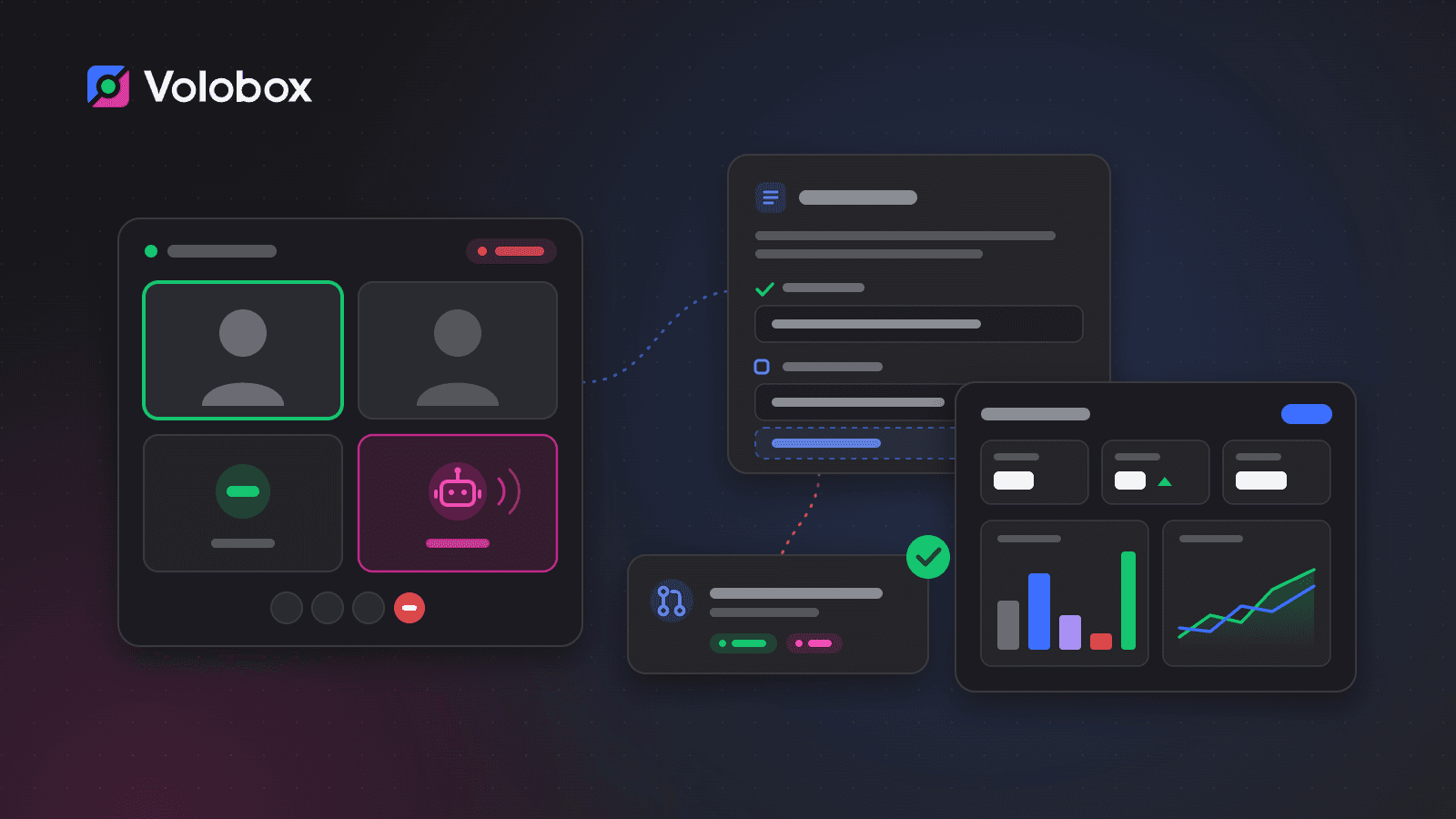
In early October we wrote about what had shipped in Volobox since launch. The product has kept moving, and this round reaches further than the last: agents now join your calls, Volobox writes the notes, your numbers have a home in the workspace, and the path from a task to a reviewed pull request runs on workflows you can read and change. Here is what shipped between early October and today.
Calls, notes and agents in the room
- Volobox Call. Select Call in any chat and the people in it can join with voice, video and screen sharing. You can also plan a call in a chat for later, and a calendar meeting can be held on Volobox Call, with no outside link to send. People write to each other during a call in its own call chat.
- Call notes. Volobox can transcribe a call, each person's microphone on its own, so every line carries the right name. From what was said it writes the call's notes: a summary, decisions, action items and open questions. A draft builds while you talk, the final notes arrive when the call ends, and you can turn any action item into a task, a request or an agenda item. No audio is ever kept, and everyone in the call sees when it is being transcribed.
- An agent in your call. Invite an agent into a Volobox call and it listens, answers out loud when someone says its name, and looks things up while you talk: a task's status, who owns something, what a page says. It answers with its own access and never changes anything from a call.
- An agent in Google Meet, Zoom or Teams. Send an agent into a call on another provider, from a calendar meeting or by pasting the call's link. It answers by voice when named, or simply takes notes, so the decisions from a customer call on Zoom end up in the same workspace as the work they are about.
- Voice chat with an agent. Talk out loud with your assistant or a team agent in your own chat with it. What you both say is written into the chat, and any change the agent proposes still waits for you on its approval card.
All of it is on Chat & Calls.
Dashboards and insights
Volobox now has dashboards, built from the work itself. An insight is a saved question about your data that draws its own chart. You do not need to write a query: describe what you want to see and Fill with AI writes it, adds filters and picks the chart. After that the insight runs without an AI model, so a refresh costs nothing in AI usage.
- Your data, where you already look. Insights read tasks, tickets, pull requests and more, plus the data of your Custom Apps and outside systems your team connects. They show on Home, behind the Chart button of a list, as a block in a Docs page, in chat, and on a project's Overview.
- Dashboards for you or for a project. Share a personal dashboard with people and groups who read it, or give a project its own. Everyone keeps their own filters, and Present mode puts a dashboard on a wall screen.
- Keep watch. An insight can refresh on a schedule, keep a history, and raise an alert when a number crosses a line, changes too fast, stops arriving or looks unusual. Alerts have their own place in Volobox, separate from notifications, and clear themselves when the condition goes away.
From task to reviewed pull request
AI review and request refinement used to be project settings. They are now part of something larger: the AI delivery templates, a set of short Code workflows that carry work from a task to a merged pull request. Triage, request refinement, AI review, fixing what the review found, repairing a failing CI run, choosing reviewers, handing a review back to the agent, and deciding what a change needs before it merges. Each one is a workflow you create for the projects that need it, read, and change. An agent's approval never counts as a person's, and your code host's branch protection still applies. Anyone can also select Request AI review on a pull request.
Around the coding loop:
- Checks before the pull request. A repository can declare the build, test and lint steps an agent's work must pass. The pull request opens only after they pass, with a Verification section that shows what ran.
- One button for the next step. A coding session now shows the next step as one button: push the changes, open the pull request, mark it ready for review. The first push opens a draft pull request.
- Continue in another repository. When the work needs a change somewhere else, continue it in a new session on the other repository. The new session starts from a handoff of the work so far and ships its own pull request.
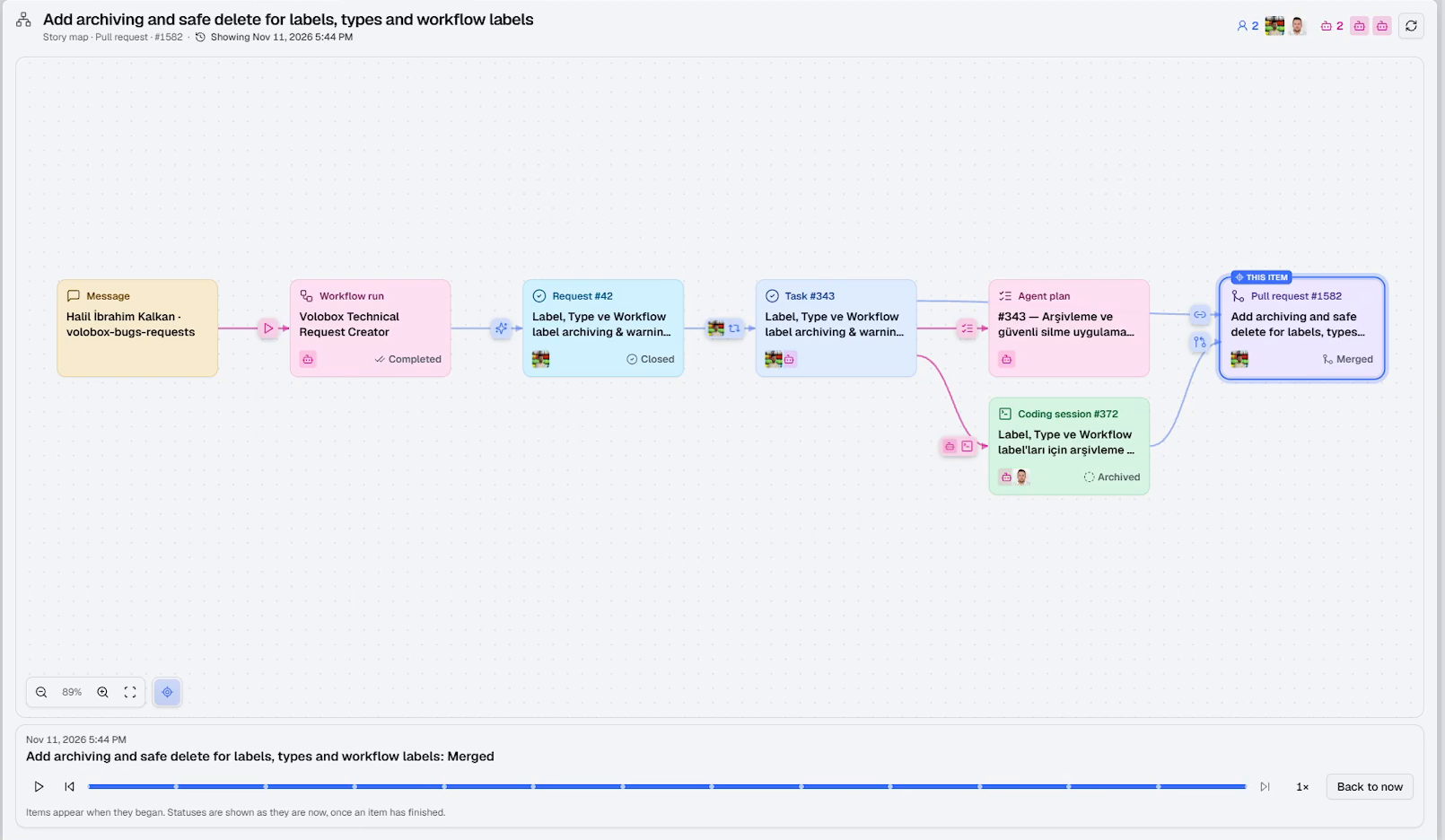
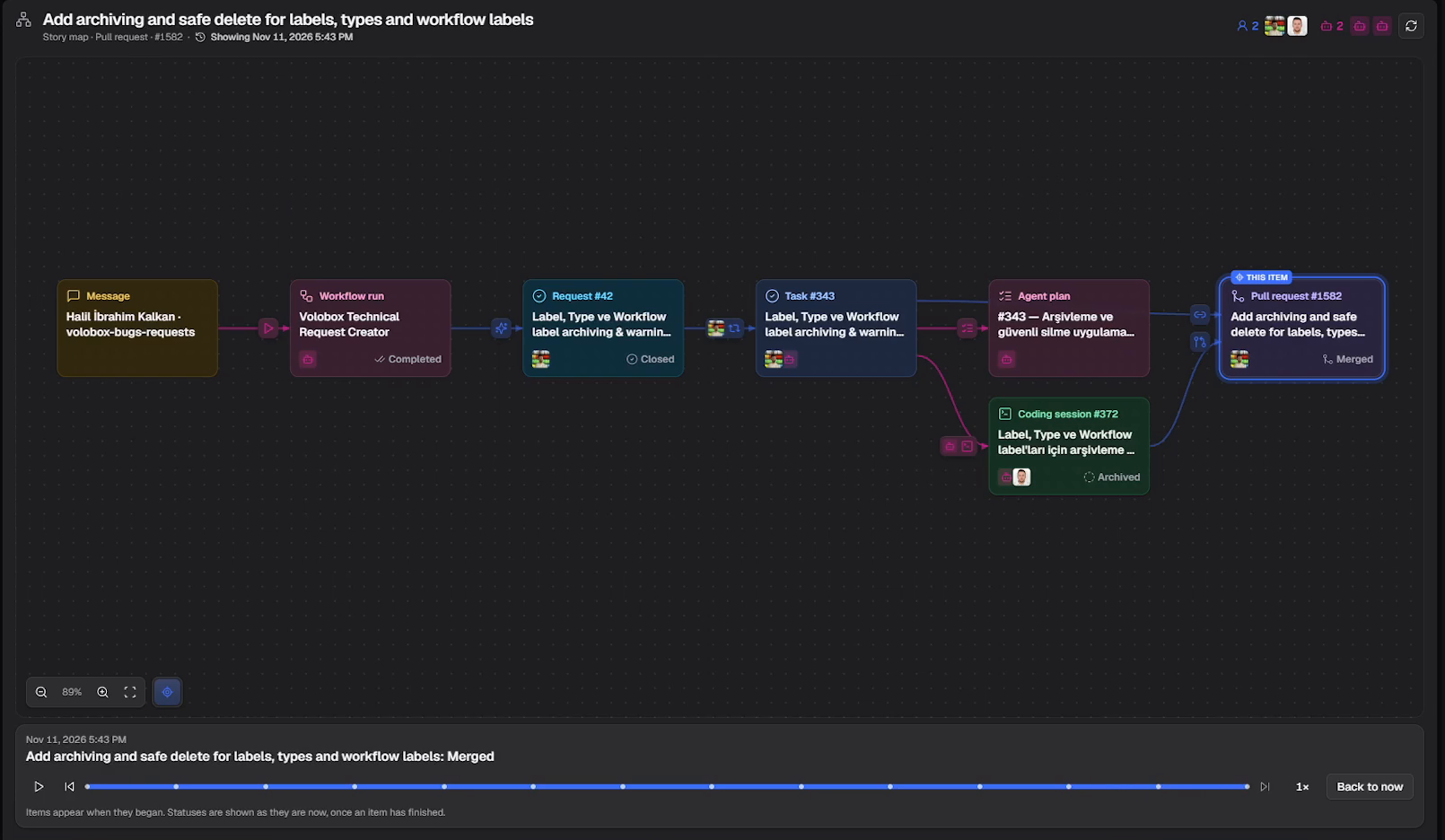
- Story. Every piece of work now has a Story: how it travelled from a ticket or a chat message to a request, a task, the workflow runs, the coding session, the pull request and its reviews. Read it as a list, or open the story map and watch it move.
More on AI Coding and Projects & Tasks.
Agents that plan, cite and draw
- Plan mode. Next to Ask and Agent, an agent can now explore, ask what it needs, and write a plan you approve before anything changes.
- Sources and artifacts. Give a chat files, web pages and Volobox items to work from, and the agent writes documents back: an HTML page, a Markdown document, a CSV file, with each revision kept as a new version.
- Charts in chat. Ask a question about your work and the answer can come back as a chart, with the data one click away. If it is worth keeping, turn it into an insight.
- New packs. Campaign Planner, People Ops Partner and Chief of Staff join the library, for teams well beyond engineering.
See AI Agents.
Your files, wherever they live
Google Drive, OneDrive and SharePoint now appear in Volobox Files, read only. Preview a file in place, find it in Spotlight by the words inside it, and point your assistant at it in your own chat. Volobox never stores what is inside your files and never changes anything in them. See Docs & Files.
Working with your clients
The customer Portal now does more than tickets. You can share a chat with a client, where every message goes to the client or stays an internal note; share chosen views of a project, where the client also opens requests; and share a drive the client reads and, if you allow it, adds files to. People from a client still never see your workspace. And a reply to a customer always waits for a person: no rule approves it on its own. See Support & Portal.
Connect and secure
- API and MCP. External tools and agents can now call Volobox through its HTTP API or the hosted MCP server. When they act for a person, that person signs in and approves exactly what the tool may do. People can also create personal tokens with an expiry.
- Webhooks. Volobox can notify your other systems when a task closes, a pull request merges, a customer replies or a workflow fails, with signed requests and a delivery log. Messages and meetings never leave the workspace.
- Passkeys and two-factor authentication. Sign in with your device's lock or a password manager, and let administrators require two-factor sign-in for everyone.
- An AI switch. Administrators can turn AI off for the whole workspace or for one area, at once.
See Platform & Extensibility and Trust & Security.
Smaller things
- Reply threads in chat, so a side conversation stays out of the channel, and polls in any chat.
- Announcements for chosen people, groups or projects, scheduled ahead, with polls.
- Set a status such as Focus or Lunch for as long as you need, and let Do Not Disturb turn on by itself outside your working hours.
- Screen sharing mode hides private chats, personal files, customer data and costs while you share your screen.
- Custom Apps records you can reference, add to your agenda, and discuss like a task.
See it on your own work
Every feature here is part of every plan. If you want to see your team's work in it, request a free demo: we set up your own workspace the same day, and your team can try it for 30 days.